Quick Guide
Easily manage your tasks and projects in two clear modes. Here’s how to start using the Work Management screen step-by-step.
📋 Switch Between Viewing Modes
You can switch between two modes:
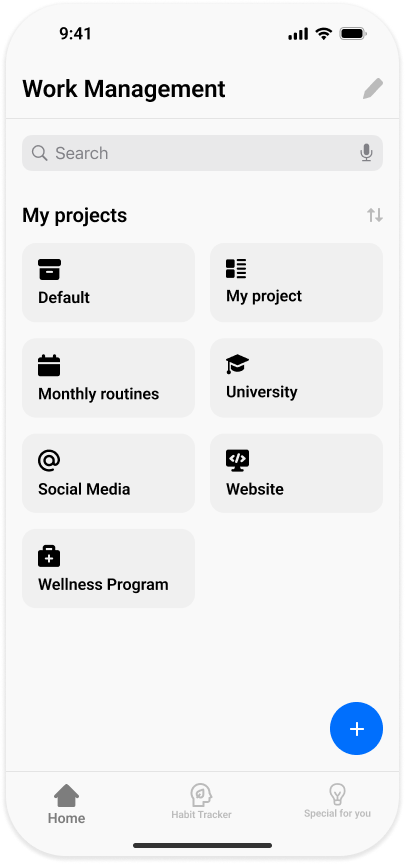
- 📁 View as Projects – organize tasks by project folders
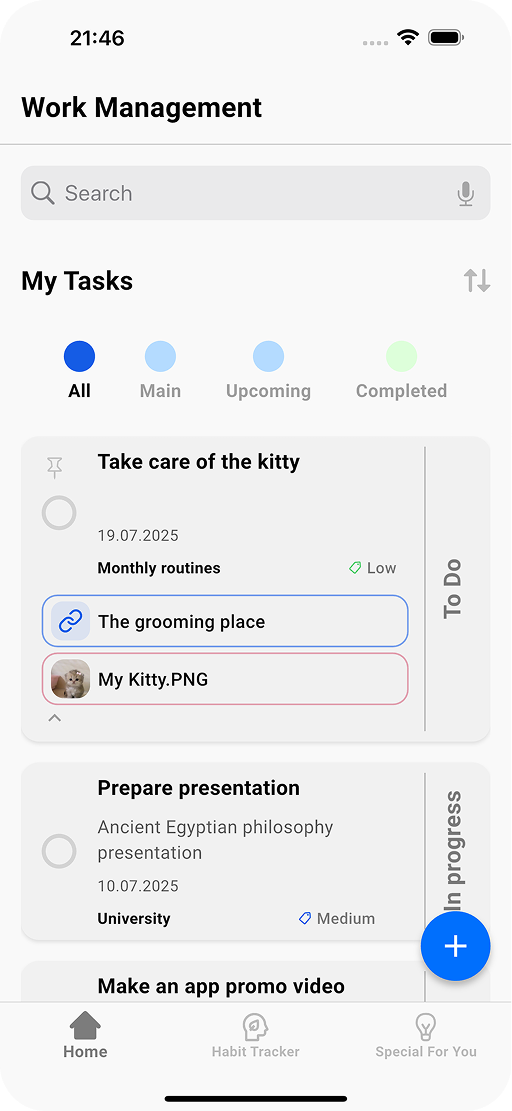
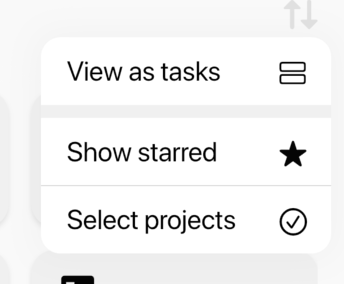
- ✅ View as Tasks – see all tasks in one list
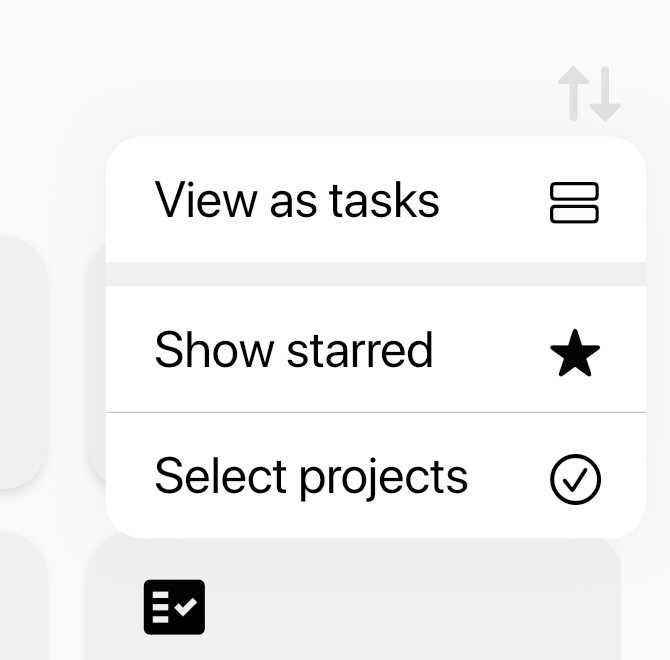
Tap the icon in the top-right corner to switch between views.
➕ Add a New Project
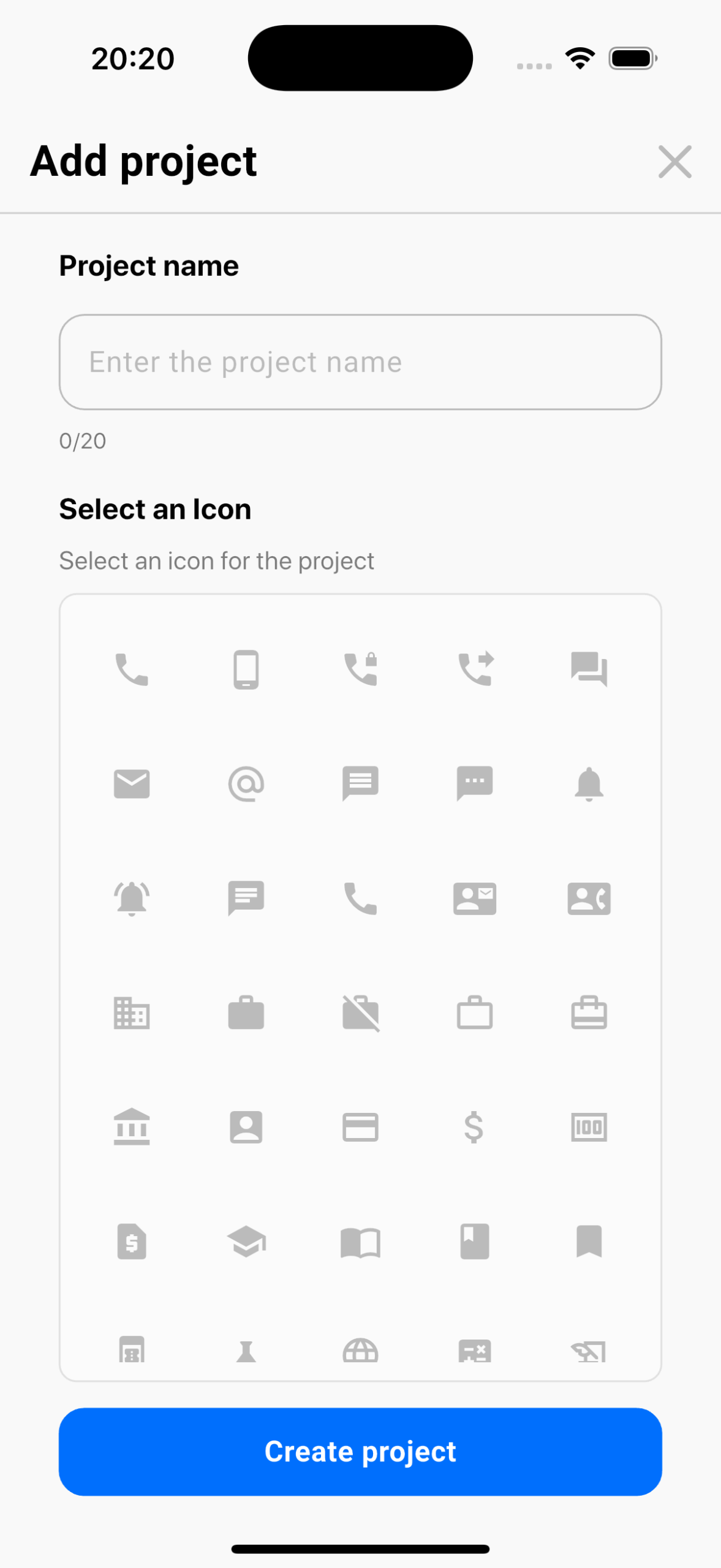
- Tap the blue “+” button
- Enter a project name
- Select an icon
- Tap “Create”
⚙️ Project Quick Actions (Long Tap)
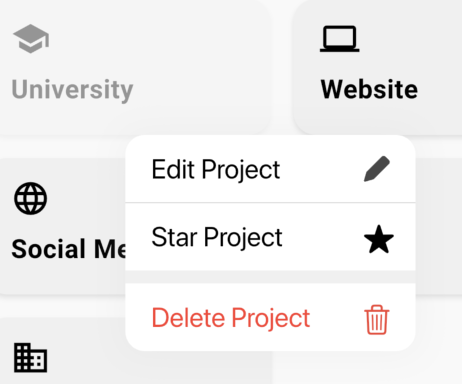
Long tap on any project to manage it quickly:
- ✏️ Edit – rename or change the icon
- ⭐ Star Project – mark important projects to access them faster
- 🗑 Delete – remove the project permanently
- ✅ Select – tap multiple projects to delete or bulk manage
✅ Add a Task to a Project
- Open your project
- Tap the “+” button
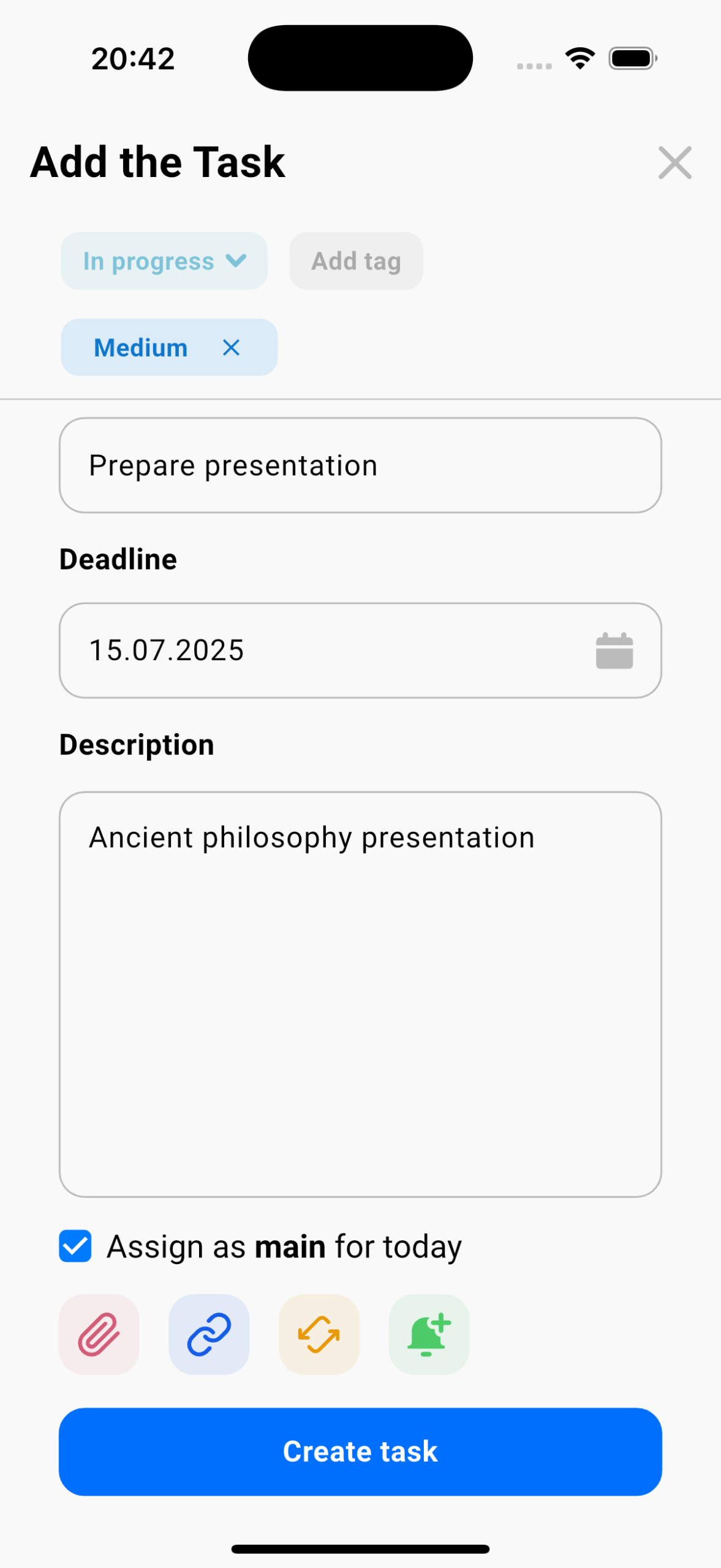
- Fill in task details:
- Select the task status (To do, In Progress, Done)
- Assign a priority tag (low, medium, high, or create your own).
- Name
- Deadline
- (Optional) Description, Repeat, Reminder
- (Optional) Use the Assign as Main for Today option to prioritize your task (recommended for your top 3–5 priority tasks per day).
- Tap “Create Task”
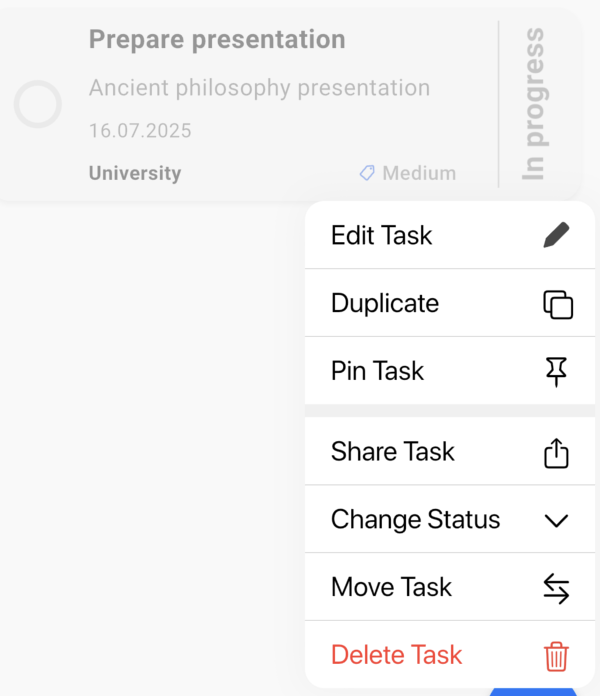
📌 Task Quick Actions (Long Tap)
- ✏️ Edit – modify the task details
- 📋 Duplicate – create an exact copy of the task
- 📌 Pin – keep the task at the top of your task list
- 📤 Share – share task details, including description, deadline, and attachments
- 🔄 Change Status – quickly update the task status (To do, In Progress, Done)
- 📁 Move to Another Project – transfer the task between projects
- 🗑 Delete – remove the task permanently
🔍 Filters & Sorting
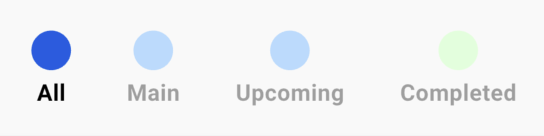
Use filters on the Tasks screen to focus on:
- Main – priority tasks
- Upcoming – sorted by deadline
- Completed – finished tasks
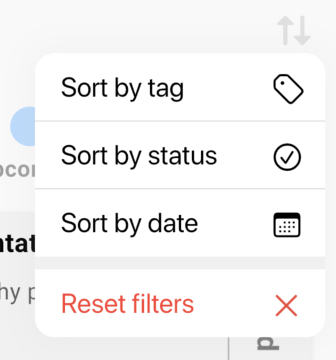
Sort tasks by:
- Tag (low, medium, high, custom tags)
- Status (To do, In Progress, Done)
- Date (deadline or creation date)
➕ Create Task from “All Tasks” View
When creating a task in All Tasks mode:
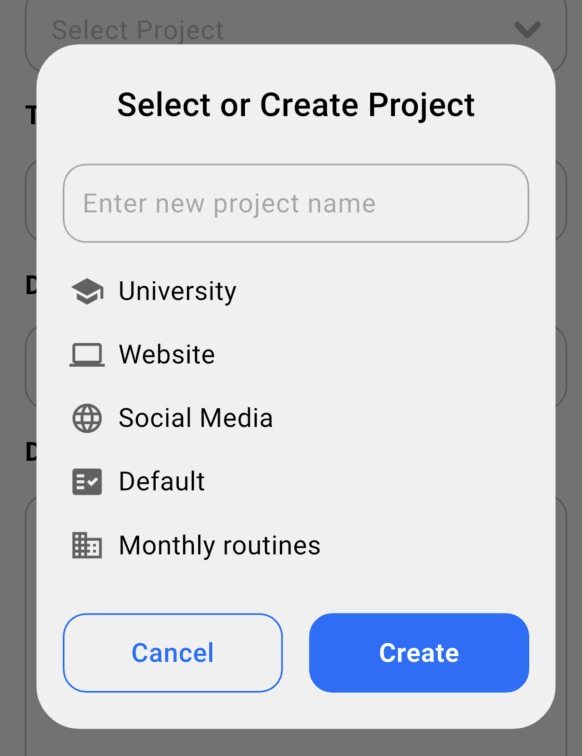
- Select an existing project
- Or enter a new project name – a project will be created automatically